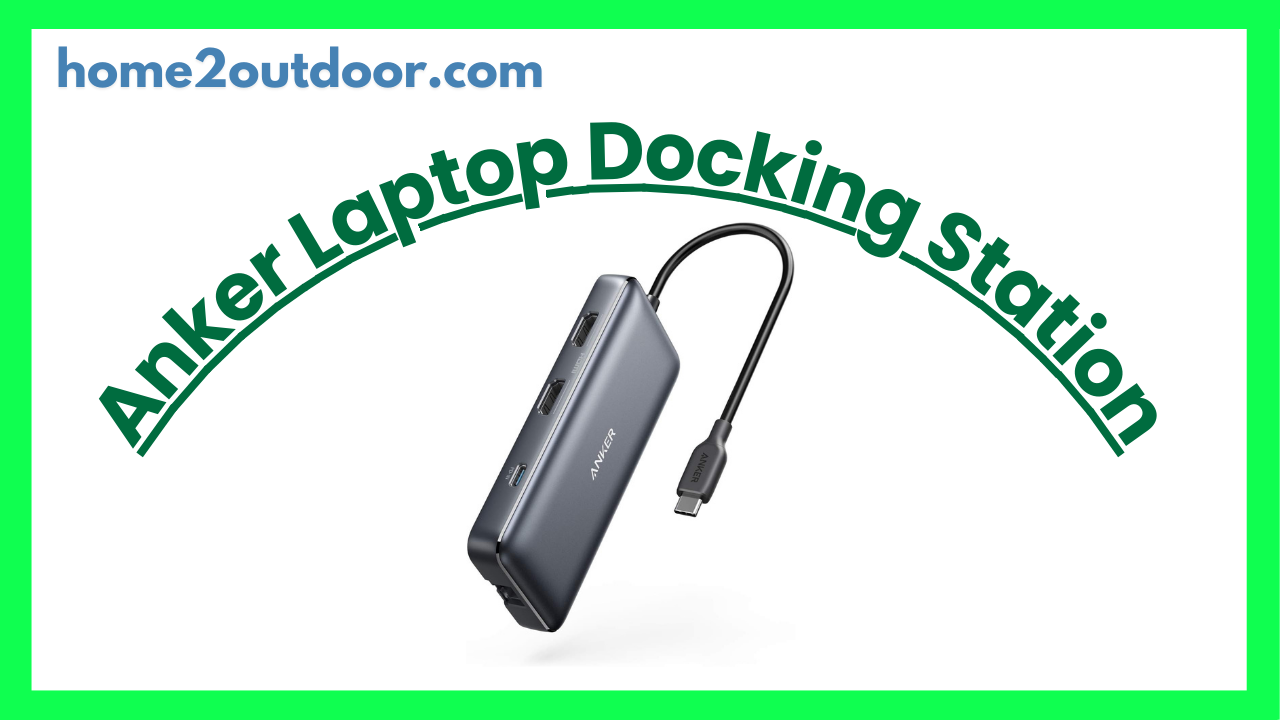
Here’s a review of Anker Laptop Docking Stations (covering multiple models) — what they tend to do well, where they fall short, and whether one might be a good fit depending on your setup.
What Are These Docks
Anker makes a variety of laptop docking/hub stations under lines like “PowerExpand,” “Prime,” and similar. These docks typically offer a bunch of ports (USB‑C, USB‑A, HDMI, DisplayPort, SD card readers, Ethernet, etc.), power delivery (via USB‑C), and support for multiple external monitors. Some are simple USB‑C docks; others are Thunderbolt or USB4 class. The exact feature set depends on the model.
What They Do Well (Strengths)
Based on reviews and user feedback, here’s where Anker’s laptop docking stations shine:
- Good Port Variety & Connectivity
Many Anker docks give you a lot of ports: multiple USB‑C / USB‑A, HDMI, DisplayPort, card readers (SD / microSD), audio jack, Ethernet, etc. That’s very helpful if your laptop has few ports. - Power Delivery & Charging
Higher‑end models typically include sufficient power delivery (often up to 85‑100W) to charge the laptop while powering peripherals. This means one cable can both power the laptop and carry video / data. - Support for Multiple Displays
Many models allow you to connect more than one external monitor. Some docks offer dual 4K, or more, depending on support for DisplayPort or HDMI, and whether the laptop supports DisplayPort over USB‑C, Alt‑Mode, or Thunderbolt. - Build Quality / Design
Anker is generally rated well for sturdy builds, clean design, often compact or thoughtful layout of ports. Some models are multifunctional (e.g. integrated stands) to help with cable management and desk ergonomics. - Good Warranty / Support in Many Cases
Many users report decent support, Anker’s warranty tends to be reasonable. For many people, the docks work well for years.
What Users Complain / Weaknesses
No product is perfect, and Anker’s docking stations are no exception. Here are areas where users often report issues:
- Power Delivery / Charging Limits
Some docks advertise high wattage (e.g. “100W”), but in practice the laptop may not actually draw that much because of limitations of the upstream cable, the laptop’s power circuit, or the dock design. Some users find that their laptop doesn’t charge as fast as expected. - Monitor / Display Issues
- Sometimes HDMI / DisplayPort connections flicker or disconnect under certain loads or after waking from sleep.
- Dual or triple external display setups may not always work exactly as expected, depending on whether the dock and laptop support the necessary protocols (DisplayPort Alt‑Mode, MST, etc.).
- Heating
Docks with lots of ports and multiple displays or heavy data transfer tend to run warm. Users warn that prolonged heavy use may result in elevated temperatures, which could lead to throttling, instability, or shortened lifespan. - Inconsistent or Mixed Reviews for Some Models
Some users say certain units failed after relatively short use, or had quirks like weird behavior when waking from sleep. Others mention poor labeling of ports or lack of clarity in specs (e.g. confusion about which USB‑C ports support video, what refresh rates are supported, etc.). - Cost
High‑feature docks (with many ports, multiple 4K/8K display support, higher PD) tend to be premium priced. Some users feel for their needs, simpler docks (or cheaper brands) might suffice.
Specific Model Highlights
Here are notes on a few specific Anker docking station models based on recent reviews:
- Anker 675 USB‑C Docking Station
This model acts also as a monitor stand with wireless charging pad. Tom’s Guide praises its design and port variety. Downsides: expensive, supports only one external monitor for many users, and hard‑to‑reach underside ports. - Anker 568 USB‑C Dock (USB4)
Pros: USB4 speeds (fast data), front ports good for fast charging, multiple video outputs. Cons: occasional instability on a second display or with chained devices; heating somewhat more noticeable. - Anker PowerExpand Elite 13‑in‑1 Thunderbolt 3 Dock
From Macworld: a high‑end dock for Thunderbolt 3 / USB‑C laptops. Offers lots of ports, SD card readers, good video output options. Price is higher than some competitors.
Overall Verdict
Here’s how I’d sum up whether you should go for an Anker laptop docking station, and what to watch out for.
Who It’s Great For
- Users who need to expand connectivity (monitors, peripherals, Ethernet, card readers) from a laptop with limited ports.
- People wanting one cable in/out for laptop + power + monitors + USBs to clean up their desk.
- Mixed environments: modern laptops with USB‑C or Thunderbolt; creators, coders, office users who benefit from multiple displays.
- Folks willing to spend a bit more to get good build quality, reliable brand, with warranty support.
Who Might Consider Alternatives
- If you primarily need a dock for light use and only one monitor, a simpler/cheaper hub might suffice.
- If your laptop requires very high power input (e.g. gaming laptops or high‑performance workstations), make sure the dock can deliver enough PD, or else you might need your original power adapter.
- If you have older displays/devices that need specific protocols (DisplayPort MST, USB‑C Alt Mode, etc.), check compatibility carefully.
- If heat or long‑term durability under heavy load is a concern, check reviews for the exact model you’re buying.