
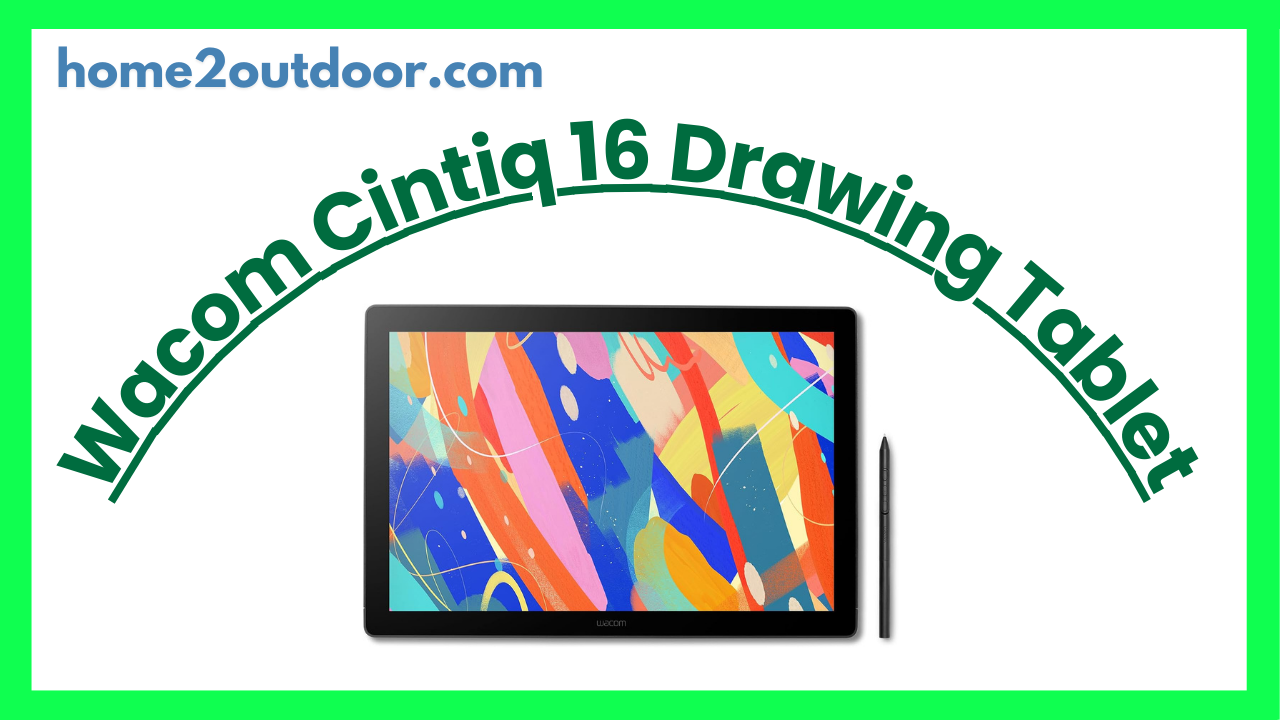
Here’s a detailed review of the Wacom Cintiq 16 (non‑Pro) pen display — what its strengths and weaknesses are, who it’s good for, and whether it offers good value. If you like, I can also compare it to alternatives in your region.
What It Is / Key Specifications
The Wacom Cintiq 16 is a drawing/digital art display tablet (creative pen display) that lets you draw directly on the screen using the Wacom Pro Pen 2. It’s one of Wacom’s more affordable models in the Cintiq line, aimed at enthusiasts, students, budding artists, and semi‑professionals.
Here are the main specs:
| Spec | Detail |
|---|---|
| Display Size | 15.6‑inch / 13.6 × 7.6 in active area |
| Resolution | Full HD — 1920 × 1080 pixels |
| Panel Type | IPS LCD, anti‑glare / textured overlay to reduce reflection and parallax |
| Color Gamut | ~72% NTSC typical, ~96% sRGB (varies by source) |
| Brightness | ~210 nits typical |
| Contrast | ~1000:1 typical |
| Viewing Angles | ~176° horizontal & vertical |
| Pen | Wacom Pro Pen 2, 8,192 pressure sensitivity levels, 60° tilt support, battery‑free (EMR) |
| Cabinet & Stand | Fold‑out built‑in legs giving about ~19° tilt; no full adjustable stand included |
| Connectivity | 3‑in‑1 cable (HDMI + USB + power), or equivalent cables; USB/HDMI required from host device |
| Weight & Dimensions | ~1.9 kg, ~422 × 285 × ~25 mm |
What Works Well — Strengths
Here are the things users and reviews commonly praise about the Cintiq 16:
- Pen Drawing Experience
The Pro Pen 2 is regarded as one of Wacom’s best — 8,192 levels of pressure, good tilt support, no batteries needed. Many reviewers find the responsiveness very good, minimal lag, reliable tracking. - Build Quality & Ergonomics
The device feels solid. The fold‑out legs for tilt are helpful, even though limited. The rubber‑gripped pen and inclusion of replacement nibs are positives. Cable management is reasonable. - Anti‑glare Surface & Reduced Parallax
The textured or anti‑glare overlay helps reduce distracting reflections. Parallax (the gap between pen tip and where the line appears) is relatively well controlled given that it is not a laminated screen. For many artists, this is acceptable and not a deal‑breaker. - Relatively Affordable for a Cintiq
Compared to Wacom’s Pro and high end “pen display” models, this is significantly cheaper, making the entry into “draw‑on‑screen / high quality pen” experience more accessible. - Cross‑Platform Compatibility
Works on Windows and macOS; compatible with most drawing / painting software. It’s a standard tool in many creative workflows.
What Doesn’t Work So Well — Weaknesses & Limitations
There are trade‑offs, and some features are missing or weaker compared to more premium models or competing products. Important to consider:
- Resolution / Sharpness
Full HD on a 15.6‑inch display isn’t as sharp as QHD or 4K displays. When doing detailed work or reading text, you might notice softness or lower pixel density. For many this is okay, but for tasks like fine typography, photo detail, or if you want ultra‑sharp visuals, this may be a downside. - Brightness & Color Gamut
The brightness (~210 nits) is modest. In bright lighting or by windows, the screen may appear dim. Color coverage (72% NTSC / ~96% sRGB) is fine for general illustration, but it may not satisfy color‑critical work (professional photo editing, print work). - Limited Stand / Tilt Flexibility
The fold‑out legs provide a fixed moderate angle (~19°). If you need steeper angles, more ergonomics, or frequent changing of position, you may want to buy a separate adjustable stand. - No Touch / Gestures
The model does not have multi‑touch input (pinch zoom, rotate by touch) — you’ll need the Pro / higher models for that. For some workflows, that’s limiting. - Cable Complexity & Bulk
The 3‑in‑1 cable setup (HDMI, USB, power) can be a bit cumbersome. Cable length may be limiting depending on setup. Some users find the cables too short or restrictive for certain desk setups. - No Laminated Screen
The glass is not a fully laminated screen (i.e. screen + sensor + glass separated), which means despite anti‑glare overlay, there is still some visible gap and mild parallax under certain viewing angles or under pen down. Artists used to laminated displays may notice this. - Text Clarity
Typographic work, UI elements, and text can appear less crisp compared to high-DPI displays. If your work heavily involves small type, this might be more noticeable.
Real‑User Feedback & Anecdotes
From community reviews, forums, and user comments:
- Many users report that once you adjust to the resolution and set the display to 100% scale (instead of enlarged UI), the workspace feels good and productive.
- Some complaints about brightness: drawing near windows or in daylight leads to visibility issues.
- The parallax is often said to be small / manageable for most work. Only in very close, detailed work or if one is extremely sensitive to small misalignment does it become frustrating.
- Cable handling and distance to PC are common concerns — if your desk arrangement puts the PC far away, the short or rigid cabling may be limiting.
Who It’s Best For & Who Might Consider Other Options
Best for:
- Illustrators, comic artists, digital painters, hobbyists, or art students who want to draw directly on a screen without spending on a Pro model.
- Users for whom the pen feel, pressure sensitivity, tilt, and build quality matter more than ultra‑high resolution or maximum brightness.
- Those working in controlled lighting environments (studio, away from bright daylight) where brightness isn’t a huge issue.
Might not be ideal if:
- You do color‑critical work, professional photo editing, print layout, or work that demands wide gamut, high brightness, or exact text sharpness.
- You often draw in bright or variable lighting conditions (near windows, daylight) where higher brightness and better anti‑glare or laminated screen helps.
- You expect to use touch gestures or want a fully laminated screen to reduce parallax further.
- Ergonomics are especially important (you want more tilt, adjustable mounts, lighter weight or more portability).
Price & Value (Including in Bangladesh)
From what I saw:
- In places like Bangladesh, Ryans lists the Wacom Cintiq 16 at around Tk 70,000 (sometimes special deals, sometimes regular price).
- Considering its build, pen input quality, and the Wacom brand reputation, many users feel this is fair value if you get your hands on one in good condition. The price premium over cheaper competitors is partly for the pen latency, ecosystem support, driver/software stability, and after‑sales service.
Overall Verdict
The Wacom Cintiq 16 is a strong choice in the mid‑tier creative pen display category. It strikes a good balance: very good pen input (Pro Pen 2), solid build quality, anti‑glare surface, and respectable color and viewing angles — all without going into Pro prices.
If you set realistic expectations — that the screen is Full HD rather than QHD/4K, that brightness and gamut are modest, and that you may want a better stand for flexibility — then it delivers excellent value. For many artists, this tablet provides just what’s needed for illustration, painting, animation, digital sketching, and general creative work.


